
Manage today's attendance
Managers and Organisation Admins can check staff attendance from the Dashboard. Roster and Timesheets access determine which filters and clock buttons appear.
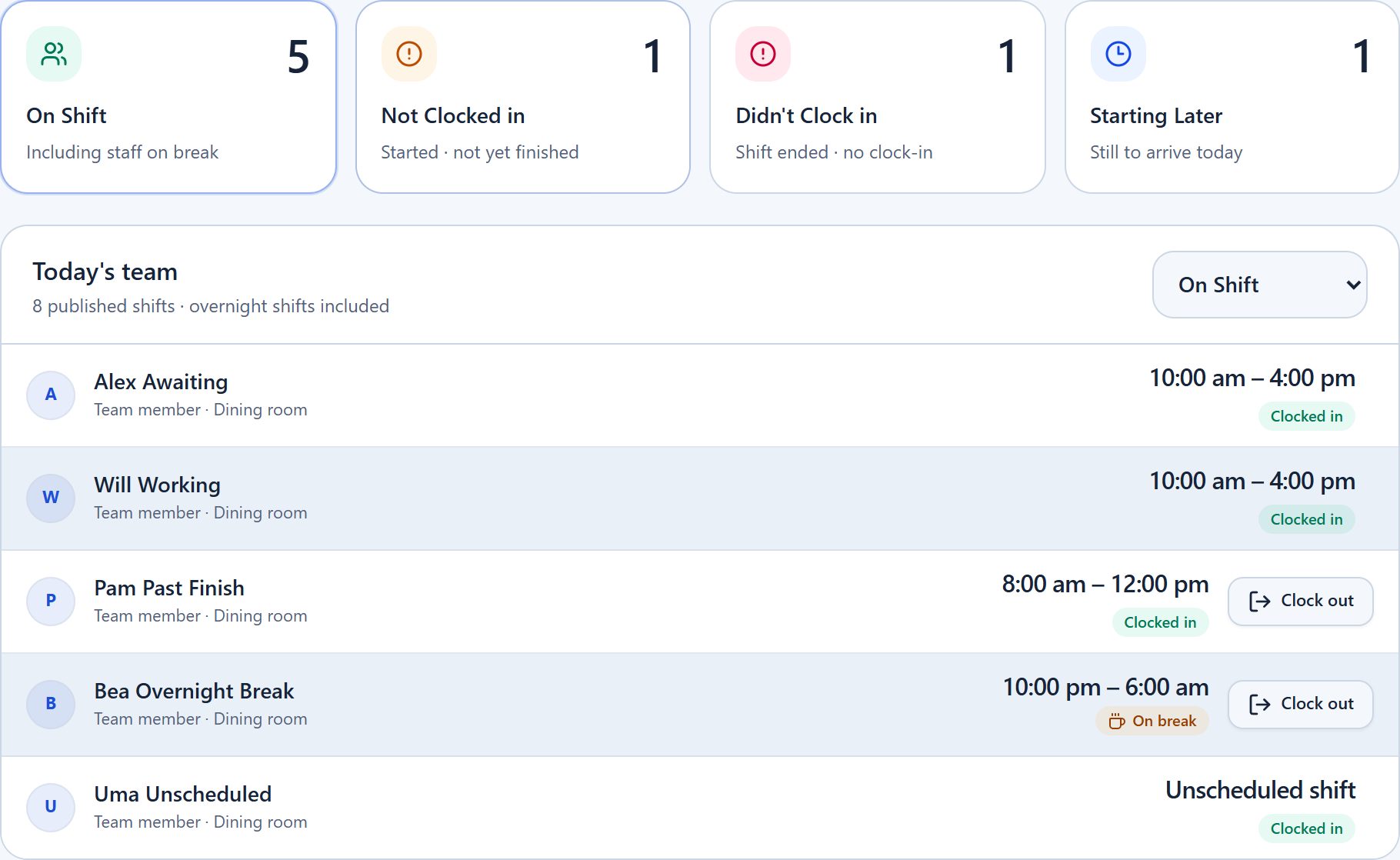
Step 1: Choose an attendance filter
- Open Dashboard and find Today's team.
- Select On Shift for people currently clocked in, including anyone on a break.
- Select Not Clocked in for shifts that have started but have not finished without a recorded clock-in.
- Select Didn't Clock in for completed shifts without a recorded clock-in, or Starting Later for shifts that have not started yet.
The scheduled filters use published shifts and your organisation's day and timezone, including overnight shifts that overlap today.
Step 2: Record a missing clock-in
- Find the staff member and select Clock in on the right of their row.
- For a shift that has not ended, this records a clock-in at the current time.
- For a completed missed shift, review the staff member, date, shift, actual start and finish times, and breaks in Clock Staff In / Out. Select Create Timesheet after checking the entry.
Step 3: Clock out someone who forgot
- Select On Shift and find the staff member whose scheduled shift has ended.
- Select Clock out, read the confirmation, and confirm.
- This records the current time as their clock-out and ends any open break. If they actually left earlier, review and correct their finish time in Timesheets.
If a clock button is missing
Clock actions require management access to Timesheets. Dashboard clock-out also needs an open timesheet linked to a scheduled shift whose finish time has passed. Use Timesheets → Live Clock for other open entries, including unscheduled work.
See Clocking In & Out for staff clock instructions and Approving Timesheets for reviewing recorded hours.